How to Use XLOOKUP in Excel (Step-by-Step Examples – 2026)
Updated February 2026 | Beginner-friendly guide with examples and common mistakes
Many Excel users struggle with the limitations of Excel lookup functions like VLOOKUP. XLOOKUP is faster, more flexible, and solves these problems efficiently. In this guide, we’ll show you how to use XLOOKUP step by step, with examples and common mistakes to avoid.
What is XLOOKUP?
XLOOKUP is a new Excel function that allows you to look up values in a table or range efficiently. Unlike VLOOKUP, it works both vertically and horizontally and provides default values for missing data.
Basic syntax:
=XLOOKUP(lookup_value, lookup_array, return_array)
=XLOOKUP("Sara", A2:A10, C2:C10)
This will return Sara's salary from the table.
How to Use XLOOKUP – Step by Step
Step 1 – Prepare Your Data
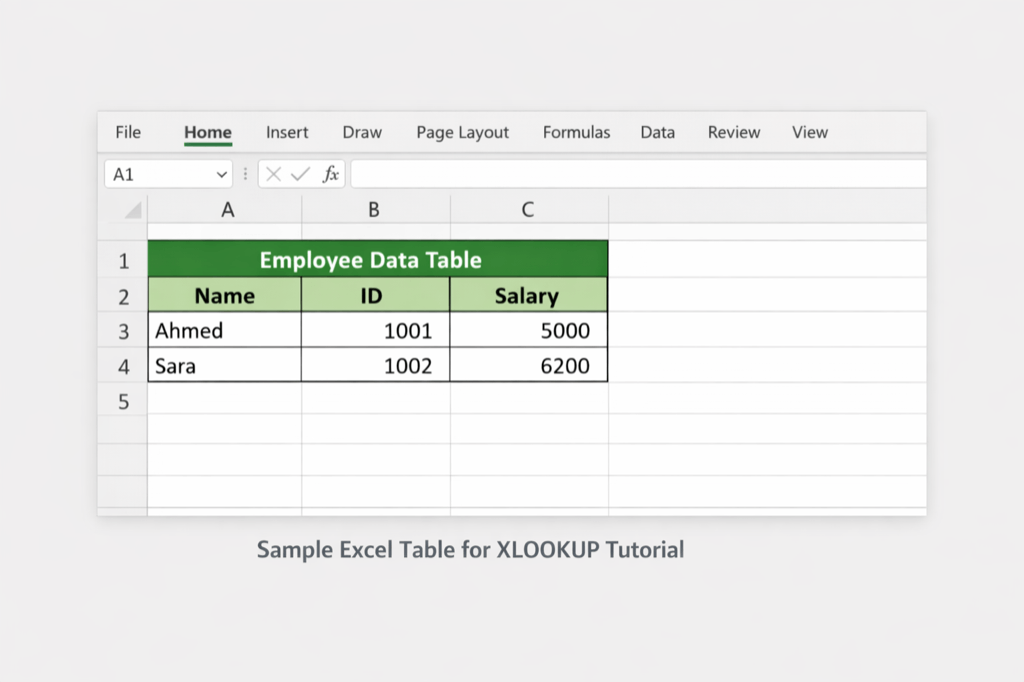
Let’s create a simple table:
| Name | ID | Salary |
|---|---|---|
| Ahmed | 1001 | 5000 |
| Sara | 1002 | 6200 |
Step 2 – Write the Formula
=XLOOKUP("Sara", A2:A3, C2:C3)
This will return 6200 for Sara.
Step 3 – Test It
Ensure the formula works correctly for different names. Replace "Sara" with "Ahmed" to check the result.
Common Errors and How to Fix Them
- #N/A Error: Lookup value not found.
- #VALUE! Error: Wrong range / array mismatch.
- Empty cells: Use a default value in formula:
=XLOOKUP("Sara", A2:A3, C2:C3, "Not Found")
Real-World Example
Use XLOOKUP for larger datasets. For example, linking employee names with salaries and departments. Always test your formula on a few sample rows before applying it to the entire table.
XLOOKUP vs VLOOKUP – Quick Comparison
This table helps you understand the key differences between XLOOKUP and VLOOKUP in Excel:
| Feature | XLOOKUP | VLOOKUP |
|---|---|---|
| Lookup Direction | Vertical & Horizontal | Vertical only |
| Default Value for Missing Data | Yes | No |
| Ease of Use | Simple | Requires exact range |
| Support for Arrays | Yes | No |
Tips for Beginners
- Check your ranges carefully.
- Use absolute references:
$A$2:$A$100 - Combine with
IFERRORfor clean results. - Practice with sample Excel sheets to understand behavior.
Bonus – Use Our Tools
After preparing your Excel sheet, you may want to save or compress it. Try our free PDF compression tool or Resize Excel screenshots to share easily.
Conclusion
XLOOKUP is a powerful function for Excel users. Practice with your own data, explore different scenarios, and use the tips above to avoid errors. Stay consistent and your Excel skills will improve dramatically.
FAQ
- What is XLOOKUP used for? Lookup values quickly in Excel.
- Is XLOOKUP better than VLOOKUP? Yes, it is more flexible and easier.
- Can beginners learn XLOOKUP easily? Yes, follow this step-by-step guide.